
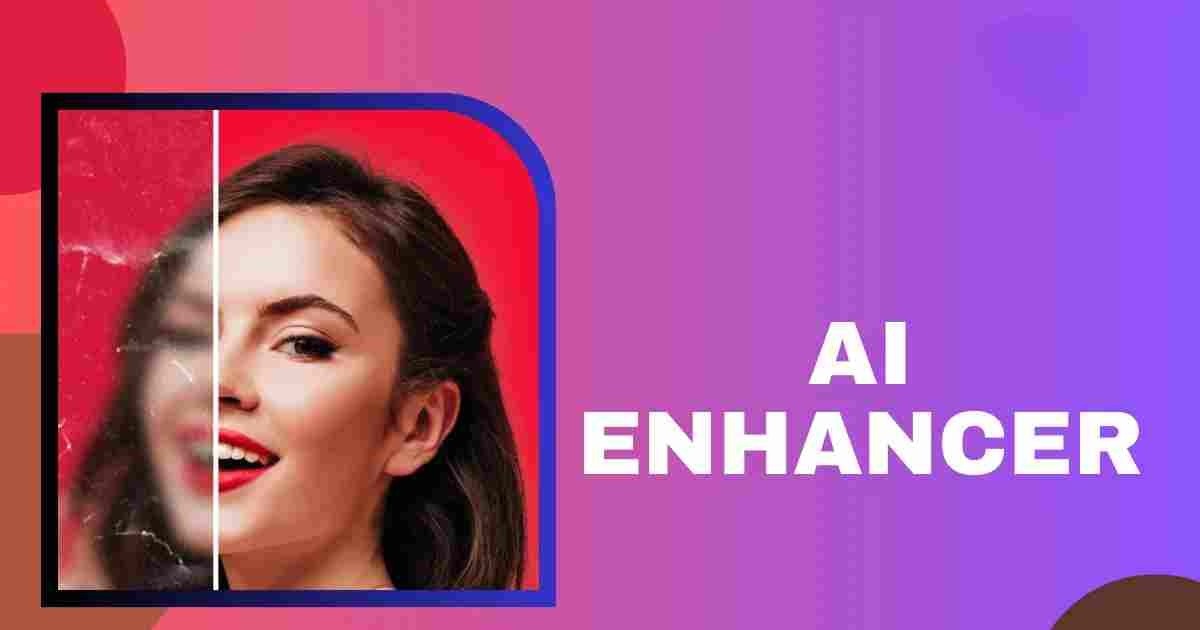
Photo Enhancer Guide Improve Image Quality Online
The clarity of an image will increase the appeal of your website, social media postings, product page listing, and other projects. Nevertheless, the image might look blurry, dim, noisy, washed out, or even too small due to cropping. Photo enhancement software can help resolve such problems by manipulating the parameters of sharpness, lighting, colors, resolution, and details. Modern programs cater to users at all levels of experience.
What Is a Photo Enhancer?
Such a digital tool is designed to enhance the quality of an image both visually and technically. Depending on the characteristics of such a tool, it will perform such functions as sharpening of blurred objects, fixing lighting problems, correction of the color palette, reduction of the graininess effect, removal of blurriness or increasing resolution. Old-style editing software demands some manual work from users while more recent ones have the ability to analyze an image and make necessary changes automatically.
How AI Image Enhancement Works
The AI-based system for photograph enhancement utilizes trained computer models in order to recognize faces, objects, edges, texture, colors, and patterns. The system analyzes blurry zones and guesses what kind of details that were not there initially can be added to the picture. For instance, AI technology can be used for enhancing portrait, de-graining the image, as well as balancing lights and shadows. However, it might invent plausible details instead of reproducing accurate data.
Important Image Enhancement Features
Resolution Upscaling
Upscaling involves enlarging the pixel size of the image, which would make the small file more appropriate for use on webpages, for presentations, large monitors, and even for printing. When one searches for ways to enhance photos 4k, what he is after is to have output images that have larger dimensions and are also clearer.
Sharpening and Blur Reduction
Sharpening is a process that makes edges more prominent and could enhance even slightly blurred photos. De-blurring would work well in cases where there was minimal camera shake or slight blurring from incorrect focusing. Very high settings might produce very bright edges, an artificial look, and textures.
Noise Removal
Noise in digital images takes the form of colored speckles or grains, particularly in dark photographs. The filtering of noise makes those sections smoother, while attempting to retain the details. Overprocessing results in loss of details such as hair, fabric, and skin textures.
Colour and Lighting Correction
The automatic adjustment helps with the correction of brightness, contrast, shadows, highlights, saturation, and white balance. It is helpful when the image is too dark, washed out, yellow, or blue.
Face Restoration
Facial rejuvenation involves eyes, lips, hair, and skin. While it can help restore old portraits, the process may make the natural look of a person change.
Advantages of Web-Based Software
The online photo enhancer tool uses a web browser, so there is no necessity to install special software. The application can be used instantly for fast modifications of photos on PCs, laptops, tablets, and smartphones. Usually, such programs operate according to the standard scheme: upload, edit, preview, and download. As the picture will be uploaded to another server, it is important to read the policy about the privacy and storage of files in order to avoid any troubles with personal, medical, financial, or secret business photos.
Are the Free Enhancers Good?
There are lots of users who are looking for a photo enhancer free option since they would like to modify several photos without purchasing a subscription. The free services are perfect for simple image improvement, for social networks pictures, or for enlarging. Some limitations include watermarks, low-quality pictures, limit per day, ads, and account needed. Searching for a free photo quality enhancer online may show numerous services; however, not all of them are reliable.
How to Select a Reliable Tool
The top photo enhancer online should produce realistic effects, guarantee the security of the uploaded photos, be compatible with your format, and state the price policy clearly. A high level of sharpness does not necessarily mean high quality.
Check these factors:
- Before-and-after image quality
- Supported formats such as JPG, PNG, and WebP
- Maximum upload size and output resolution
- Watermark or download restrictions
- Privacy and automatic deletion policies
- Mobile and desktop compatibility
- Trial, subscription, and cancellation terms
- Manual control over colour, noise, and sharpness
Your goal matters because a portrait tool may not suit landscapes, products, illustrations, or scanned text.
Step-by-Step Enhancement Process
Start with the highest-quality original available. Screenshots, copied social media pictures, and repeatedly compressed JPEG files usually contain fewer recoverable details.
- Save a backup of the original image.
- Crop and straighten it when needed.
- Apply light noise reduction.
- Correct brightness and white balance.
- Increase resolution with moderate settings.
- Add careful sharpening after upscaling.
- Compare the edited version with the original.
- Export it in a suitable format and size.
For websites, compress the finished image. For printing, keep a larger version.
Common Mistakes to Avoid
Overprocessing remains the biggest issue. Over-sharpening results in hard edges, too much face correction causes loss of natural skin tone, and oversaturation causes unreal colour tones. Do not make repeated saves of a JPEG file as this can lead to degradation of the quality of the image. Always save the original image, then produce another edited version of the image. Always be aware that any details produced by AI are not 100% accurate.
Frequently Asked Questions
1. Can enhancement fix every blurry picture?
No. It may improve mild blur and low resolution, but it cannot fully recover details the camera never captured. Results depend on the original file.
2. Is AI image enhancement safe?
It can be safe when you use a trusted platform with clear privacy and deletion policies. Avoid uploading sensitive pictures to unknown websites.
3. Does increasing resolution improve quality?
Upscaling increases image dimensions. AI-based upscaling may also improve edges and textures, while ordinary resizing can make a picture appear softer.
4. Which format is suitable after editing?
JPG is practical for photographs and smaller web files. PNG supports transparency and higher quality. WebP often offers good website quality with a smaller file size.
5. Can enhanced images be used on a website?
Yes. Resize and compress them before uploading. Use descriptive file names and relevant alt text to support accessibility, user experience, and image SEO.
Conclusion
Image enhancing helps to make an image usable when it is not bright enough, is full of noise, is old and faded, or is not very sharp. It is important that naturalness, accuracy, privacy, and image size be kept in mind during the process. Try a new service on a regular photo and then save the original.
You may also read: seekho app



![[1194+] Couple Dp for Whatsapp Images, Photos, Pictures & Wallpapers (2026)](https://pxfuel.in/wp-content/uploads/dl-uan6cumj0h74-1-768x615.jpg)